Hardware Tex Pert

  • Subscribe to our RSS feed.
  • Twitter
  • StumbleUpon
  • Reddit
  • Facebook
  • Digg
Showing posts with label External Hard Drive. Show all posts

Monday, 31 January 2011

Hard Drive Boot Sector Fix

Posted on 14:30 by Unknown

The boot sector on your hard drive is a file called the Master Boot Record (MBR for short). This sector of the hard drive is a major part of the computer's boot process, and without it, your operating system cannot successfully boot. If the MBR is corrupted by a virus or deleted through user error, you can fix it by using your operating system installation CD.

  1. Turn on your computer, insert your installation CD, restart the computer and wait for the "Press any key to boot from CD" message to appear." Press any key on your keyboard as soon as you see this message.
  2. Press "R" once the welcome menu appears and wait for the Recovery Console to load.
  3. Log in to your operating system by pressing "1," pressing "Enter," typing in your Administrator password and pressing "Enter."
  4. Type "fixmbr" in the Recovery Console window and press the "Enter" key. If you are asked to confirm the command, type "yes" and press "Enter."
Restart the computer and allow it to boot normally by typing "exit" and pressing "Enter."
Read More
Posted in Difference between IDE and SATA Hard Drives, External Hard Drive, Hard Disk Partition, Hard Disk Support, PC Support, Technical Support, TechSupp247 | No comments

Thursday, 25 November 2010

Advantages and Disadvantages of External hard disk drives

Posted on 15:47 by Unknown
Advantages and Disadvantages of External hard disk drives
External drives are arguably the biggest growth area in data storage of recent times. They offer the possibility of a readily transportable repository for all a user’s valuable data, documents, photographs, music and movies. Alternatively they can provide a destination for a user to backup their valued files to, in case the data held on their internal storage is lost, or the internal storage fails. But are they lulling users into a false sense of security?

They are being offered with ever increasing capacity and at ever decreasing prices. Many are advertised using ‘pence per Gigabyte’ prices as a lure. However a few notes of caution arise from the recent spate of external hard drives being sent for Data Recovery.

·        Unlike the internal hard drive in your PC, which is held securely in a rarely moved case, external drives are being carried about from place to place and as a result they get dropped, knocked, crushed and subject to all manner of abuse and trauma.

·        They have trailing power and/or data cables that only too easily serve to pull them over, drag them off desks or otherwise expose them to further risk.

·        Unlike the hard drive in your PC or Laptop, which is cooled by a fan, external drives seldom have cooling fans and, in an effort to make them as small as possible, the hard drive(s) inside rarely have much free air space around them. This can result in overheating with the attendant problems that causes.

·        External drives are an excellent destination for backing up files, but this only truly safeguards your data if the files are initially saved to an internal drive and then backed up to the external. If the external becomes the default place for files to be saved to, the data is not being backed up, it is simply being saved to a destination where it is more likely to be lost.

The hard drives found inside externals are no less likely to fail than an internal drive. Indeed where the drives inside an external are invisible to the user and perhaps chosen to keep costs low, might they be more likely to fail even without the extra risks highlighted above? Where external drives carry extended warranties, this might seem reassuring, but remember, the warranty will only cover repair or replacement of the drive, not the cost of recovering any valuable data stored on it.
Read More
Posted in Desktops, External Hard Drive, Hardware Support, PC Support, Technical Support, TechSupp247 | No comments

Monday, 1 November 2010

Printer goes offline on reboot

Posted on 13:13 by Unknown
On reboot computer, the printer in Windows 7 XP mode goes offline

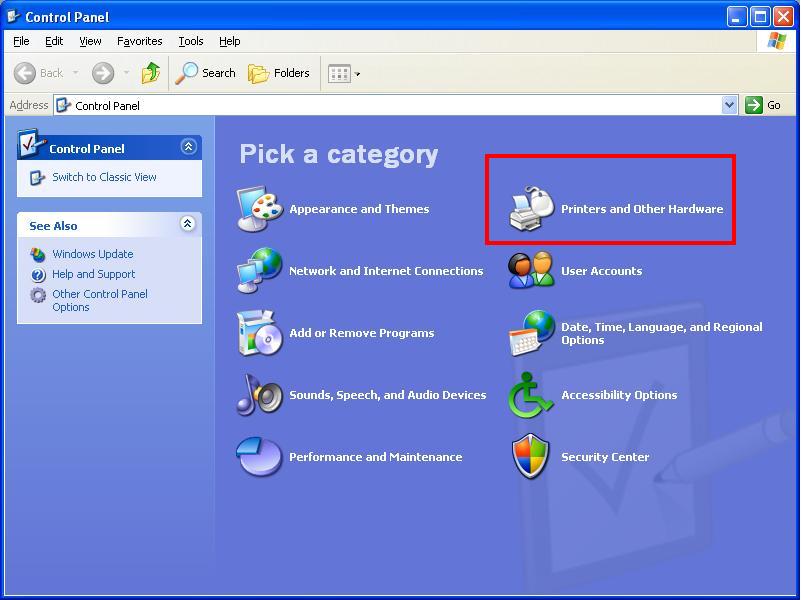
1). In Control Panel, Printers, delete offline printers. If they wont delete, it may be because there are pending print jobs in the queue. Open the printer and Cancel the jobs..


2). In Printer properties, Ports tab, delete the previously installed printers (offline status) that appear as Client Side Rendering Provider under the Description column.


To do this, highlight the port, then click on Delete Port button. Click Apply.


3). Restart your PC.
4). Now reinstall the printers as follows:
         1). Open Control panel, Printers, and click Add a printer.


         2). Click Add a local printer.
         3). Select the "Use an existing port" radio button, and select LPT1: (Printer Port). Click Next.
        4). Install the printer driver. Mine were found in the list inlcuded with Vista. Select the manufacturer and the printer. Click Next.
          5). In the next window, accept the printer name or type in a new name. Leave the "Set as default printer" box unchecked. Click Next.
5). Vista should now install the printer. A window should open saying "You've successfully added printer name.

6). DO NOT Print a test page at this time, because nothing is connected to the LPT1 port on the laptop. Just press Finish. The printer you just added should appear in the Printers window.
7). Click ONCE on the newly added printer to highlight it, then right-click and open Properties.
8). On the Ports tab, click Add Port “select Local Port, then click New Port”

9). When the Port Name window open, Enter a port name as follows: \computername\printername (replace computername with the name of your PC acting as print server, and printername with the name of your printer). Click OK.
10). You should now have a new port listed on the Ports tab of the printer Properties, but now the Description should be Local Port, instead of Client Side Rendering Provider. Click OK.

11). Now you can go to the General tab, and Print a Test Page.
Read More
Posted in Desktop Support, Desktops, External Hard Drive, Hardware Support, PC Support, Technical Support | No comments

Friday, 22 October 2010

Partition External Hard Drive

Posted on 03:36 by Unknown
Partition External Hard Drive
Most of the external hard drives come with one preformatted partition ready to use. But if it didn't, or if you don't like the default setup, changing it is easy. And of course you'll want to do this before you load that disk up with data.
Start by Right clicking on My Computer and then clicking on Manage. In the resulting application window, click on Disk Management in the left hand pane. You should see something similar to this:


At the top you'll see all the logical disks on your system listed alphabetically by label by default. Below that you'll see a graphical representation of all the physical disk drives known to your system. If a physical drive has more than one partition those partitions will be shown together on the single physical drive.
In this example, my drive "E:" is an external USB drive. It happens to be my backup drive where nightly backups are stored.
Remove the Existing Partition
Let's assume for a moment that I'm unhappy with the current configuration of the partitions on my external drive and want to change it. My first step would be to remove the existing partition.
You need to right click on the drive in the lower pane, and you should see this menu:


Important: the next step will delete everything on the drive. Make sure this is what you want before proceeding.

Click on Delete Partition
The representation of the drive should change from "Healthy" to "Unallocated".
Partition the Drive
Right click on the drive again, and the option that was once "Delete Partition" is now "New Partition". Click on that to set up your new partition.
You'll then be asked to select "Primary" or "Extended" partition. Primary is sufficient unless you plan to put more than 4 partitions on this hard disk. You'll then also be asked how much of the space to allocate for the new partition you're creating.
Typically, I recommend simply allocating the entire space to a single partition. You can, if you like, allocate less than the maximum space to the partition you're creating now so that you have room for additional partitions on the same hard disk. Remember that each partition, once formatted, will appear as its own logical disk (C:, D:, E: and so on.)
You'll then be asked about formatting, which I'll cover below.
Once you've formatted the new partition, it'll appear as "Healthy", and any leftover space will continue to display "Unallocated". You can then repeat this partitioning process on that unallocated space until your entire drive has been allocated.
Format the Drive
Assuming that partitioning has been performed above, or you don't want to change the partitioning of your drive, the next thing to change would be the format of the drive.
Important: formatting a drive will delete everything on the drive. Make sure this is what you want before proceeding.

Right click on the drive that you wish to format, click on the Format item, press OK on the dire warning, and you'll get a dialog similar to this:


Let's look at each of those options:
·         Volume Label - is the name that will appear when the logical disk is displayed in Windows Explorer, in File selection dialog boxes and in other situations. It's a convenient way to identify disks by name rather than only by letter. The label is an attribute of the drive, so particularly on removable drives the label stays the same no matter what machine you plug it into, or what drive letter it gets assigned.
·         File System - I recommend NTFS unless the drive is going to be used by older versions of Windows, or by non-Windows systems. There's debate as to whether NTFS is faster (I think it is), but it also supports additional security features like file permissions, and can typically make more efficient use of larger disks.
·         Allocation unit size - can be left at "Default".
·         Perform a Quick format - for the type of format we're doing here, I actually recommend leaving this unchecked. A quick format only writes the bare minimum of information to establish the disk's new configuration. If the disk has been in use for a while, that's fine and is what I typically recommend. However, when going through the effort of formatting a new disk I suggest using this opportunity to have the format process actually write the entire drive. It may take a while.
·         Enable file and folder compression - I have mixed feelings about this. The overhead of compressing and decompressing files is no longer significant with today's processor speeds. However I have concerns about data recovery if the disk ever experiences an issue. My concerns may not be valid, but ultimately, I never run with compression on any of my hard disks, preferring instead to compress the individual files as appropriate instead. So many file formats, like most audio and video files, are already compressed that the compression offered by the file system is often negligible. I leave this unchecked.
That's it. Press OK and after a period of time you'll have a formatted, ready-to-use disk.
Read More
Posted in External Hard Drive, Hardware Support, Hardware Texpert, PC Support, Technical Support, TechSupp247 | No comments
Older Posts Home
Subscribe to: Posts (Atom)

Popular Posts

  • How to Disable BIOS Settings
    How to Disable BIOS Settings BIOS is an acronym for Basic Input/Output System. It is the boot firmware program on a PC, and controls the c...
  • How to Clean all Disk's with the Diskpart Command
    Information This will show you how to use the clean command on a selected disk to delete all of it's M...
  • Difference Between Pentium Processor & Centrino
    Difference Between Pentium Processor & Centrino The Pentium Series Intel's line of Pentium processors includes more than just lapto...
  • VESA VGA Monitor
    What Is a VESA VGA Monitor? VESA is a worldwide monitoring body for a variety of computer graphics standards. They're best known for Fla...
  • How to Change the IRQ Settings in the BIOS
    Default motherboard BIOS settings usually do not need to be changed when the motherboard or computer is installed and will suffice for mo...
  • How to Wake Up a LAN
    The networking power management features on your computer allow it to save energy. The most common network power management feature used is ...
  • Check System Specification
    Computer users should familiarize themselves with the specifications of their machines. This information is valuable when it comes time to...
  • Repair an HP Laptop Power Jack
     The majority of problems with DC power jacks on HP laptop models stem directly from a crack forming between the power jack's positiv...
  • Difference Between AT & ATX Motherboards
     A bit of research into the specific features of your motherboard can help you decide what to buy, and it can protect your computer from dam...
  • Reset the Waste Ink on a Canon Printer
    The Canon ink counter tool estimates your remaining ink usage, and should be reset each time you replace your ink cartridge . This tells y...

Categories

  • Acer Aspire Factory Settings
  • Add PU to SLES
  • Advantages of Optical Mouse
  • AGP Support
  • Animal Trough In FarmVille
  • ANSI Standards
  • Asus
  • asus prime sense
  • AT and ATX Motherboards
  • Ati Radeon.
  • ATX Cabinet
  • Barcode Printer
  • Barcode reader
  • Barebone Kit
  • best i7 motherboard
  • Best seeds
  • BIOS Flash
  • BIOS IRQ Settings
  • Bios Power Management
  • BIOS Recommended settings
  • BIOS Update
  • BIOS Upgrade
  • Black screen
  • Bluetooth Compatibility
  • Bluetooth Device Support
  • Bluetooth Keyboard
  • BlueTrack technology Mouse
  • Blur Monitor Screen
  • BT Hub
  • Buying a Gaming Computer
  • Cable STB to PC
  • Card Reader
  • Cassettes to CD
  • Cat5e and Cat6e Cable
  • Cat5e Cable Types
  • CD Drive
  • Change BIOS IRQ Settings
  • Change Ink Waste Pad
  • Change Power LED
  • Change Trays in HP M3085
  • CircuitBoard Tools
  • citrix ipad
  • Clean Processor Fan
  • Clean Roller on Phaser 6120
  • Clean TrackPad
  • Clear Paper Jam on Inkjet Printer
  • CMOS battery
  • Common PC Hardware Problems
  • Compare Cartridg Toner
  • Computer Backup
  • Computer Components
  • Computer Hardware Monitoring Tools
  • Computer Power Supply
  • Computer Specification
  • Computer Storage Capacity
  • Computer Wont power on
  • Computer Workstation
  • Configure Xbox Wireless Network Adapter
  • Configuring a Mother Board
  • Configuring PC Gamepads
  • Connect CCTV to Computer
  • Connect FingerPrint Reader
  • Connect Inspiron to Lexmark
  • Connect Laptop to A/V Receiver
  • Connect Laptop to TV
  • Connect LCD to Computer
  • Connect PC to TV Wirelessly
  • Connect prjector to a computer wirelessly
  • Connect Two Computer to Act One System
  • Connect Two Computer to One Monitor
  • Connect Two Computers using USB
  • Connect Two Routers on One Home Network
  • Connect Xbox 360 to HDTV
  • Connecting 5.1 speakers
  • Convert Component Output to VGA
  • Convert Headphone to USB for VOIP
  • Convert LCD to DVI
  • Convert USB to Parallel
  • cool
  • Coxial Cable Types
  • CPU Components
  • CPU Stress Tests
  • CPU Temperature
  • Custom Personal Computer
  • D-link Wireless Router
  • Data Transfer from HDD to HDD
  • DDRAM
  • Default DVI Port
  • Delete Master Boot Record
  • Dell Recovery
  • Dell Support
  • DesignJet Printer Head Path
  • Desktop Support
  • Desktops
  • Difference Between DVD-R and DVD-RAM Discs
  • Difference between IDE and SATA Hard Drives
  • Difference between LCD and LED Monitors
  • Difference Between Notebook and Small Laptop
  • Difference between Pentium and Centrino
  • Difference Between Regedit and Regedit 32
  • Disable BIOS Settings
  • disable hybrid power
  • Disassembling a Computer
  • display self test
  • Dispose Printer Toner
  • Dual Core in smartphones
  • Dual Core Vs Quad Core
  • Dual Layer DVD
  • DVD Drive
  • DVD/CD ROM
  • DVI Port
  • Enable ATI Theater Mode
  • Enable IOMMU BIOS
  • Erase Password Protection on Hard Drive
  • Error 633
  • Expand Printer Memory
  • Extended Partition
  • External Hard Drive
  • external sound card
  • External USB
  • Facebook
  • Facebook Games
  • farmville
  • Farmville coins
  • Fiber Optic Cables Parts
  • Find a Lost File
  • FireWire
  • Fix EXE and CDD Files
  • Format Printer
  • Format Protected Disk
  • Game Console Gamepad Configuration
  • Games
  • GeForce Installing Problems
  • General Compnents of PDA
  • Graphics
  • Grapics Card Diagnostics
  • Hard Disk Failure
  • Hard Disk Jumper Settings
  • Hard Disk Partition
  • Hard Disk Support
  • Hard Disk Types
  • Hard drive
  • Hard Drive Enclosure
  • Hardware Components
  • Hardware Diagnostics Tools
  • Hardware Expert
  • Hardware Issues
  • Hardware Requirements for Firewall
  • Hardware Support
  • Hardware Testing Tools
  • Hardware Texpert
  • hardwarwe texpert
  • HDMI Motherboard
  • HDTV Tuner
  • HeatSink
  • Hibernate WakeUp
  • Hide Computer ID
  • Hide Computer Identity
  • High Speed Hard Drives
  • How to Disable Automatic Driver Installation in Windows 7
  • How to fix Keyboard not detecting by the computer
  • How to force eject a stuck DVD/CD drive
  • How to reduce noise in PC
  • How to Scan film Slides using a Flat Bed Scanner
  • How to troubleshoot no sound from computer speaker
  • How to Use a Digital Camera as a Webcam
  • How to's
  • HP 3380 Scanner
  • HP Dream Screen
  • HP Laptop Power Jack
  • HP Support
  • hybrid power
  • i7 motherboard
  • i7 processor
  • Identify Xeon Processor
  • IEEE Wiring Colors
  • iMac Resolution
  • Inkjet Hub
  • InkJet Hub Printable
  • Inkjet Multifunction Printers
  • Install AGP Card
  • Install blue-ray drive
  • Install Bluetooth Device
  • Install DSL Modem
  • install external card
  • Install Fan in Computer
  • Install Graphics Card
  • Install Internal Card Reader
  • Install Internal Modem
  • Install Laptop Skins
  • Install Network Card
  • Install Plotter Support
  • Install printer
  • Install SATA drivers
  • Install ScanDisk Cruzer
  • install sound card
  • Install TV Tuner Card
  • Install Video Card on Laptop
  • Install WebCam
  • Invertor on Laptop
  • ipad
  • ipad cloud computing
  • IPS Technology LCD
  • Itouch as a Removable Disk
  • Jaz Drive
  • keep
  • Kensington Lock
  • Keyboard Installation
  • KVM Switch
  • Laptop
  • laptop doesn't power on
  • Laptop Glossy Screen
  • Laptop Hardware Failures
  • Laptop IR
  • Laptop LCD Inverter
  • Laptop Life
  • Laptop NumLock
  • Laptop Overheating
  • laptop support
  • Laptops
  • Laser Printer vs Ink Jet Printer
  • Laser Virtual Keyboard
  • Lenovo Ideapad Laptop
  • Lenovo Support
  • Linksys E1000 wireless-N router
  • Linksys USB wireless Adapter
  • Linksys Wireless N Home Router
  • Linksys wireless PCI Adapter
  • Linksys wireless-N Adapter
  • Linksys WRT54G2 Wireless Router
  • Locate Lost Files
  • Logical Drives
  • Magic Color
  • Magnetic Storage
  • Maximize Computer Brightness
  • Membrane Keypads
  • Memory Card types
  • Memory Module
  • Missing page break
  • missing redo
  • missing undo
  • Mobile Phone
  • Monitor beeping
  • Monitor blank
  • Monitor Issues
  • monitor self test
  • More farmville coins
  • MotherBoard Jumper settings
  • Motherboard Support
  • Motherboard Support Chipset Support
  • Mouse Pointer Disappears
  • Netgear wireless Access point
  • Netgear Wireless adaptor
  • NETGEAR Wireless Dual Band Gigabit Router
  • Netgear Wireless USB Adapter
  • Network Card
  • Network Switch
  • new block editor
  • New Seagate Harddisk
  • No display
  • Notebook Mouse
  • Notebook Screens
  • Nvidia Card Support
  • Nvidia Drivers
  • Nvidia GF114
  • Nvidia graphics card
  • NVRAM
  • Online games
  • onlive
  • Open Explorer.exe
  • Optical Drive
  • Optical Storage
  • Optical Storage More Durable than Magnetic Storage
  • Output devices
  • Parallel Computers
  • Parts of the System Case
  • PC Card to USB
  • PC Case
  • PC Speakers for Home Stereo
  • PC Support
  • PCI
  • PCI Adapter
  • PCI Express
  • PCMCIA Card
  • PDA Backup
  • PDA Soft Reset
  • PDA Warm Reset
  • Phaser Printer
  • Plasma Screen
  • Play Music on another computer speakers
  • Plotter Support
  • Power cycle
  • Power Supply
  • Power supply connectors
  • Power Switch
  • Primary Partition
  • Print a Color Image
  • Print Black and White on Canon MX850
  • Printer
  • Printer Color Alignment Issues
  • printer support
  • printers
  • Processor Fan
  • Processor Support
  • PS3 Controller
  • Rack Mount Power Supply
  • RAM
  • RAM Types
  • RAM Upgrade
  • Record Stereo to Computer
  • Remote Reader
  • Remove Ribbon Cable
  • Repair Maxtor Bad Sector
  • Repair Raw Drive
  • Replace CMOS battery
  • Replace HDMI with Ethernet Cables
  • Replace Ink in Canon MP970
  • Replace Laptop Battery
  • Replace Laptop DVD/CD ROM
  • Replace Laptop Hard Drive
  • Replace Laptop Keyboard
  • Replace Laptop RAM
  • Replace LED Bulb in Laptop
  • Reset BIOS Password
  • Reset Dell Axim Password
  • Reset Int Settings
  • Reset Laptop
  • Reset Low Ink Messages
  • Reset PDA
  • Reset Waste Ink on Canon Printer
  • Restore Fuction on HP Laptop
  • Return Toshiba to Orginal Settings
  • Safely Remove Hardware
  • Sandy Bridge Processor
  • Sapphire Radeon HD 6870 Vapor
  • Sata Drivers
  • Save Laptop Battery
  • Scan Documents
  • Scanner Support
  • SCSI to USB Adapter
  • SDRAM
  • Seagate Barracuda
  • Second Generation Intel Processors
  • Secondary IP Addresses With HSRP
  • Setup Computer to a Projector
  • setup dual monitors
  • Smart Switch
  • Smartphones
  • SMPS
  • Software to test Computer Hardware
  • Solid State drive
  • Sony Vaio USB
  • Specific Hardware not Working
  • spyware
  • Stream TV on VLC
  • Switch PC Hardware
  • Synaptics Pointing Deive
  • Sync Mobile with PC
  • System Crashing or Rebooting
  • Tape Drive Installation
  • Technical Support
  • TechnicalSupport
  • TechSupp247
  • The best online game
  • Thermal Grease
  • Thermal Printer
  • Three Port IEEE
  • Tools required while working on PC
  • Top 5 AMD Motherboards
  • Top 5 Video Crads
  • Touchpad
  • Types of Computer Mice
  • Types of DVD Drives
  • Types of Expansion Slots
  • Types of hard drives
  • Types of Input Devices
  • Types of Memory Cards
  • Types of Processors
  • UEFI Architecture
  • Unable to detect SATA hard disk
  • Unable to Scan from Konica Minolta
  • Unlock OSD
  • Upgrade Computer
  • Upgrade USB Drive
  • Upgrade WEP to WPA
  • USB 3.0
  • USB Adapter Types
  • USB Cables
  • USB Host Controller
  • USB Hub Specification
  • USB Not Working
  • USB Port
  • USB Portable Disk drive
  • USB Support
  • USB to PS2 Cable
  • USB Wireless Devices
  • Uses of Desktop Computers
  • VESA Bracket Mounts
  • Vesa Specification
  • Vesa VGA Connector
  • VESA VGA Monitor
  • VESA Wall Mount
  • VGA Shared Memory
  • Video card
  • Video Cards
  • Virtual System
  • Virus Removal Support
  • Virus Support
  • Visual Display Unit
  • Wakeup LAN
  • Ways to Keep Your PC Cool
  • Ways to Save Printer Ink
  • Web Monitoring
  • Webcam as Security Camera
  • Wet Laptop
  • windows 7 ipad. windows 7 on ipad
  • Windows 7 Optimization
  • windows 7 support
  • Windows XP Optimization
  • Wireless Access Point
  • wireless adaptor
  • Wireless Devices
  • Wireless Home Theater
  • Wireless Mouse Battery
  • Wireless Mouse Support
  • Wireless Network Types
  • Wireless PCMCIA Card
  • Wireless Printer Adapter
  • Wireless Router
  • Wireless Wep Password
  • Xeon Processors
  • Xerox Phaser 6360
  • Zynga
  • Zynga games

Blog Archive

  • ▼  2011 (313)
    • ▼  July (1)
      • Keep your laptop cool
    • ►  June (27)
    • ►  May (11)
    • ►  April (33)
    • ►  March (97)
    • ►  February (58)
    • ►  January (86)
  • ►  2010 (63)
    • ►  December (34)
    • ►  November (11)
    • ►  October (18)
Powered by Blogger.

About Me

Unknown
View my complete profile